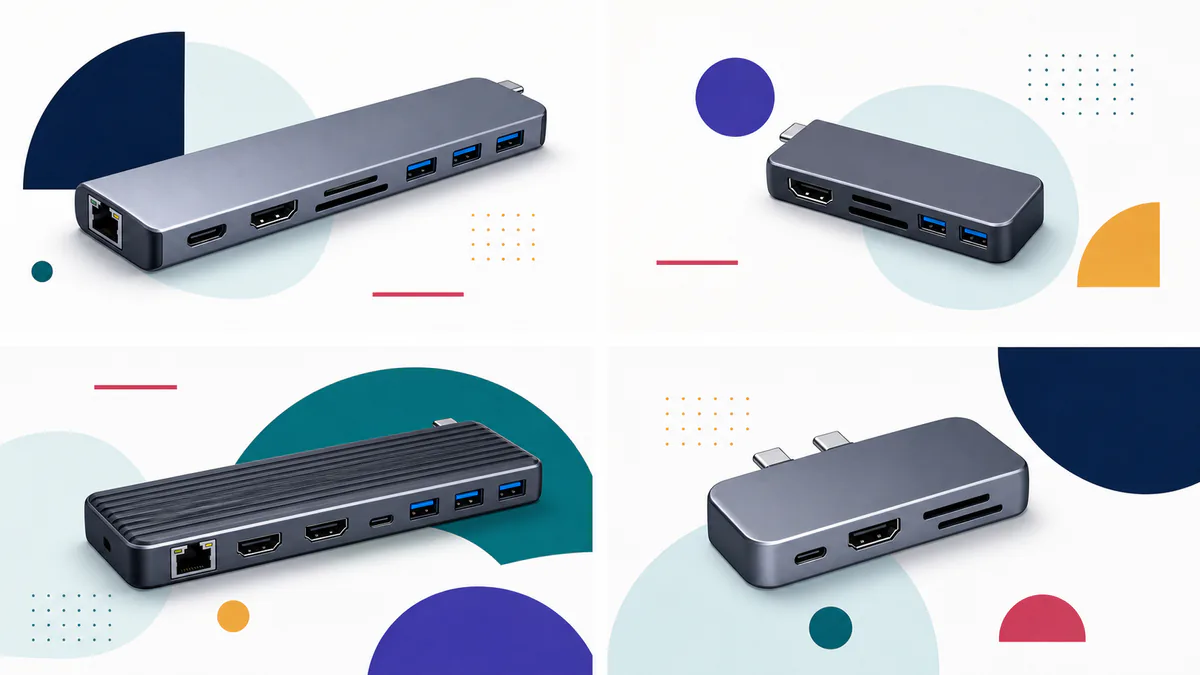
Quick comparison
The Plugable 9-in-1 USB-C Hub, model USBC-9IN1E, is the best USB-C hub for most people. It turns one USB-C port into a useful mix of fast USB ports, a Gigabit Ethernet port, HDMI, two card readers and laptop charging. It also costs much less than a full docking station.
Its details matter. The main connection runs at 10Gbps. HDMI can reach 4K at 60Hz on a compatible laptop. Both card readers support UHS-II cards. With a common 100W USB-C charger, the hub can send up to 85W to the laptop. With the right 140W USB PD 3.1 EPR charger, cable and computer, that ceiling rises to 125W.
Not everyone needs the same ports. These four hubs cover the clearest use cases:
- Choose the Plugable 9-in-1 for the best balance of ports, speed and price.
- Choose the Anker Nano 7-in-1 to spend less while keeping HDMI, card readers and 85W charging.
- Choose the Plugable 11-in-1 for two extended 4K monitors on a compatible Windows or ChromeOS laptop.
- Choose the Satechi Pro Hub Slim for a supported MacBook that can use its 40Gbps USB4 port.
Prices were checked on August 24, 2026. They may change.
| Hub | Best for | Main limits |
|---|---|---|
| Plugable 9-in-1 USBC-9IN1E, $49.95 | Most laptops; Ethernet, fast cards and one 4K display | One display; 4K/60 needs DP 1.4 |
| Anker Nano 7-in-1 A83D2, $25.99 | Essential ports on a smaller budget | No Ethernet; 5Gbps data |
| Plugable 11-in-1 USBC-11IN1E, $87.95 | Two monitors on Windows or ChromeOS | 5Gbps host link; weak fit for Mac |
| Satechi Pro Hub Slim, $79.99 | Compatible MacBooks and USB4 storage | Uses two MacBook ports; no Ethernet |
None of these hubs includes its own charger. Keep that extra cost in mind if the charger that came with your laptop is too weak, has the wrong connector or must stay in another room.
A USB-C plug does not promise every USB-C feature
USB-C, also called USB Type-C, describes the small, reversible connector. It does not tell you the data rate, charging limit or display support.
The USB Implementers Forum makes this distinction clear: USB-C is not the same thing as USB 3.2, USB4 or USB Power Delivery. A port may have the familiar oval shape yet carry only USB 2.0 data. Another may carry 40Gbps USB4 data, video and enough power for a laptop.
Three features need separate checks.
| Capability | What to verify |
|---|---|
| Data | 480Mbps, 5Gbps, 10Gbps or 40Gbps USB4 |
| Display | DisplayPort Alt Mode, DP version and computer display limits |
| Charging | USB Power Delivery support and watts delivered to the laptop |
Video usually reaches a hub through DisplayPort Alt Mode. VESA explains that DisplayPort, USB data and power can share a USB-C connection, but the computer must support that display mode. If it does not, the hub's HDMI port will stay dark when you attach an external monitor.
Power has its own rules. A hub may accept 100W from a charger but send only 85W to the laptop. The missing power runs the hub and connected devices. The laptop may also accept less than the hub can provide.
Data claims need context too. A 10Gbps label beside three ports does not mean the hub can move 30Gbps through a 10Gbps host connection. Those ports share the upstream link. Ethernet, card readers and storage can compete for the same bandwidth.
What matters most in a hub
A useful port list starts with the devices already on your desk. Count them before buying; the right USB-C hub should connect accessories without making you pay for ports you will never use.
For many people, the right mix is one HDMI port, one USB-C data port, two USB-A ports, Ethernet and an SD card reader. A second monitor, several external drives or fast camera cards can change that list.
These factors separate a dependable hub from one that merely has many sockets:
- The host connection must be fast enough for the attached devices.
- Each USB-C port needs a clear job. Some carry data, some accept power and a few carry video.
- HDMI claims must include both resolution and refresh rate.
- Laptop charging should state power input and output.
- Mac display limits must be stated apart from Windows limits.
- Card-reader claims should name UHS-I or UHS-II.
- The warranty should be long enough to cover more than a short return period.
- A fixed cable should be long enough for the desk but easy to pack.
Port count alone can mislead. A nine-port hub with three useful 10Gbps data ports may serve an SSD-heavy setup better than an eleven-port hub with a 5Gbps host link. A portable USB hub with fewer ports may be the better travel choice if Wi-Fi is always available.
Best overall: Plugable 9-in-1 USB-C Hub
The Plugable USBC-9IN1E earns the top spot with a rare mix of speed, charging power and sensible ports at $49.95.
Its 10Gbps host connection feeds one 10Gbps USB-C data port and two 10Gbps USB-A ports. A fourth USB-A port runs at 480Mbps. That slow port is still useful for a keyboard, mouse receiver or printer. It leaves the faster ports free for storage.
Gigabit Ethernet handles wired networking. The HDMI 2.0 port can drive one display at up to 4K and 60Hz. Its full-size SD and microSD card slots both support UHS-II cards, with a rated interface ceiling of 312MB/s.
That mix covers common work without adding many duplicate ports. A laptop can connect to a monitor, wired network, keyboard, SSD and SD card through one attached cable.
Power is a real strength
The charging system supports two USB PD ranges.
With a standard 100W PD 3.0 charger, the hub can deliver up to 85W to the computer. With a compatible 140W PD 3.1 EPR charger, an EPR-rated cable and a host that accepts that power, it can deliver up to 125W.
The USB-IF notes that USB PD 3.1 added higher fixed voltages for 140W, 180W and 240W charging. Every part of the chain must support the required level. A 140W charger paired with a 100W cable will not create a 140W connection. A laptop that accepts only 65W will still draw no more than its own limit.
The hub's USB-C charging port is not a data or display port. The other downstream USB-C port carries 10Gbps data but does not carry video. HDMI is the only display output.
Display support depends on the laptop
Plugable states that 4K at 60Hz requires a host with DisplayPort 1.4 over USB-C. A computer limited to DisplayPort 1.2 tops out at 4K and 30Hz through this hub. Lower resolutions can run at 60Hz.
That difference is easy to feel on a desktop. A 30Hz screen can make pointer movement and scrolling look less smooth. Before buying, check the laptop maker's specification page for DisplayPort Alt Mode and the supported DP version.
The hub works without an added driver on supported Windows, macOS, ChromeOS and Linux systems. USB4 and Thunderbolt ports can also use it, though the hub remains a 10Gbps device.
Who should buy it
This is the strongest choice for a home office, shared desk or travel bag when one external screen is enough. It also suits photographers who use both SD and microSD cards.
The current Macworld USB-C hub guide names it the best overall USB-C hub. Its review favors the extra USB-A port, UHS-II card readers and higher charging ceiling over older all-purpose models.
There are still tradeoffs. The body is about 7.2 inches long and weighs 4.7 ounces. It is portable, but it is not tiny. Its attached host cable is about 7.5 inches long and cannot be replaced. All normal USB data still shares one 10Gbps link.
Gigabit Ethernet is helpful when Wi-Fi is busy or weak. If a network upgrade is also on the list, compare Wi-Fi 6 and Wi-Fi 7 before replacing a router solely because one laptop has a poor wireless link.
Best budget hub: Anker Nano 7-in-1
The Anker Nano 7-in-1 A83D2 was listed at $25.99 when checked. It keeps the ports many people need and removes Ethernet.
Its seven connections are:
- One HDMI port, up to 4K at 60Hz
- Two USB-A data ports, up to 5Gbps each
- One USB-C data port, up to 5Gbps
- One USB-C PD input
- One SD slot
- One microSD slot
The Anker support guide states that a 100W charger can send up to 85W to the laptop. The hub keeps 15W for its own operation. The wall charger is not included.
The two USB-C ports are easy to confuse. One accepts charging power. It does not carry data or video. The other carries 5Gbps data. It does not charge the laptop or drive a monitor. HDMI handles the display connection.
Where the lower price shows
The 5Gbps data link is half the rated speed of the Plugable 9-in-1. That is enough for keyboards, mice, flash drives, many portable hard drives and light SSD use. It is less appealing when you often transfer data to a fast 10Gbps SSD.
The card readers are rated up to 104MB/s, the usual ceiling for UHS-I. They are fine for routine photo imports, but they cannot use the higher transfer rate of a UHS-II card.
There is no Ethernet port or headphone jack. Buyers who need wired networking must add another adapter, which reduces the value of choosing the cheaper hub.
The U.S. product page confirms broad USB-C use but does not give a detailed operating-system chart. Check with Anker before buying for Linux, a game console or another device outside common Windows, macOS and ChromeOS laptops.
Who should buy it
The Anker is a good match for a student, traveler or home user who needs one monitor and a few basic accessories. It is also a sensible spare for a laptop bag.
Its current sale price is a large part of the appeal. At a much higher price, the Plugable 9-in-1 gives more speed, Ethernet and faster card readers. Anker covers hubs and adapters with an 18-month U.S. warranty.
Only the Plugable 11-in-1 among these four picks includes a 3.5mm audio jack. If the laptop has no headphone port, a small USB audio adapter may help. A wireless pair can also keep hub ports free; see the guide to wireless earbuds under $100 for separate audio choices.
Best for two Windows displays: Plugable 11-in-1
The Plugable USBC-11IN1E is built for a Windows or ChromeOS desk with two HDMI monitors. It was listed at $87.95.
The hub has two HDMI 2.0 ports, three 5Gbps USB-A ports, one 5Gbps USB-C data port, Gigabit Ethernet, a headset jack, SD and microSD readers and a USB-C power input.
Its display system uses DisplayPort Alt Mode and Multi-Stream Transport, or MST. It does not use DisplayLink software. That means there is no display driver to install, but the computer must support the needed display features in hardware.
Dual 4K needs a capable host
Two screens can each reach 4K at 60Hz only when the host supports DisplayPort 1.4 with Display Stream Compression and MST. That is the path to dual extended displays on a suitable Windows PC or ChromeOS laptop. Plugable also lists suitable Thunderbolt 4 systems.
A DisplayPort 1.2 laptop cannot meet that limit. Plugable says it will top out at one 4K display at 30Hz or lower resolutions across two displays.
Macs need a separate warning. macOS does not extend a desktop across both HDMI ports through this MST hub. One screen can extend at up to 4K and 60Hz, but the second HDMI screen mirrors the first. Plugable says the product is not recommended for Mac buyers who need two extended screens.
That makes this a poor general Mac pick even though basic Mac support exists. The Satechi section below is a better starting point for a supported MacBook. A DisplayLink dock is another path for Mac models with strict native display limits, but it requires software and costs more.
The data side is slower than the port count suggests
The host connection runs at 5Gbps. Each of the four USB data ports is also rated at 5Gbps, but they cannot all sustain that rate at once through one 5Gbps upstream link.
Ethernet and card transfers also use that link. Copying files from an SD card to a USB SSD while using Gigabit Ethernet can create more competition than the port labels imply.
The full-size SD reader supports UHS-II cards at up to 312MB/s. The microSD reader is UHS-I, up to 104MB/s. That difference matters for cameras that record to fast full-size SD cards.
Charging has an unusual documentation gap
The hub accepts up to 100W through its USB-C PD input. Plugable's detailed compatibility text says it can supply up to 85W to the laptop after reserving about 15W. Another product FAQ says up to 92W may be available when the hub reserves only 8W.
It is safer to plan around 85W. Do not buy it for a laptop that requires a firm 100W or higher supply under load. It can run without a charger in bus-powered mode, but attached drives and other devices then draw power from the laptop.
The hub has a two-year warranty and needs no display software. Its attached host cable is about 1.45 feet long, which is easier to route behind a laptop stand than the short cable on many travel hubs. The body is also 8.7 inches wide and weighs 6.6 ounces. It fits a desk better than a small pocket.
Who should buy it
Choose this model for a Windows or ChromeOS laptop with confirmed DP 1.4, DSC and MST support. It works well for office tasks spread across two HDMI monitors. It also has enough legacy ports for a keyboard, mouse, headset, network cable and card reader.
Do not choose it merely because the laptop has Thunderbolt or a USB-C connector. Confirm the display details first. Work laptops can also have firmware or security settings that affect external displays.
A hub's Ethernet port connects the computer to the network. It does not power cameras or replace a camera base station. Buyers planning a wider home network should assess those needs separately, including whether outdoor security cameras can work without a subscription.
Best for compatible MacBooks: Satechi Pro Hub Slim
The Satechi Pro Hub Slim costs $79.99 and connects to two adjacent USB-C ports on the side of a supported MacBook.
Its key feature is a full-function USB4 pass-through port. Satechi rates that port for up to 40Gbps data, a 6K display at 60Hz and up to 100W charging. A separate HDMI port supports up to 4K at 60Hz.
The remaining ports include one 10Gbps USB-C data port, two 10Gbps USB-A ports and UHS-I SD and microSD readers. Both cards can be read at the same time. There is no Ethernet or audio jack.
The USB-C ports have different jobs
The USB4 port can carry fast data, display output and laptop charging. The second downstream USB-C port carries 10Gbps data only. It does not support video or pass-through charging.
Satechi advertises up to 100W through the USB4 port. Macworld's current review reports 96W pass-through. Treat 100W as the stated interface ceiling, not a promise that the battery will receive a full 100W. The laptop, charger, cable, hub and connected devices all affect the final result.
The two USB-A ports are rated at 10Gbps, but Satechi lists only 900mA per port. They are made for data devices, not fast phone or tablet charging.
Model fit matters more than usual
The rigid dual connector is designed for MacBooks. It will not fit a Windows laptop, the 2026 MacBook Neo or another computer with different port spacing.
Check Satechi's current Pro Hub Slim compatibility list against the exact Mac model before buying. “MacBook Pro” is not specific enough because case design and port placement have changed over time.
A laptop case can also affect the fit. Satechi confirms that its own Eco Hardshell leaves the ports open for this hub. That does not confirm every third-party case. A cabled hub is safer when case clearance is uncertain.
Mac display limits still apply
The hub provides one USB4 display path and one HDMI path, but the Mac decides how many extended displays it can drive.
Satechi says base M1 and M2 models do not support two extended displays through this hub. Base M3 Macs support two extended displays only in clamshell mode, with the laptop lid closed. Other Mac chips and models have their own limits.
This is not a DisplayLink product, so software does not bypass those limits. That is good for a simple driver-free setup, but buyers must match the hub to the Mac's native display support. The current compatibility list includes supported MacBook Air and MacBook Pro models.
Who should buy it
The Pro Hub Slim suits a compatible MacBook owner who wants a flush fit and a true 40Gbps USB4 connection for fast storage or a USB-C display. It is also useful when both USB-C and HDMI display outputs matter.
Skip it if Ethernet is essential, if the MacBook has only one usable high-speed USB-C port or if a thick case blocks flush accessories. The Macworld guide calls it the best 40Gbps USB4 hub for Mac, while also noting its two-port design and UHS-I readers.
Start with the device, not the hub
The same hub can work well on one computer and lose major features on another. This is why USB hubs are not interchangeable: use the host device as the first filter.
For a Windows laptop
Find the laptop's full technical specifications. Search for the exact model number, not only the product family.
Check four items:
- Does the USB-C port support DisplayPort Alt Mode?
- Does it support charging through USB Power Delivery?
- Is its data link 5Gbps, 10Gbps, USB4 or Thunderbolt?
- For two displays, does it support DP 1.4, DSC and MST?
Choose the Plugable 9-in-1 for one display and a broad port mix. Choose the Plugable 11-in-1 only after confirming the hardware needed for two displays.
Some gaming and mobile-workstation laptops need more power than a travel hub can pass through. They may charge slowly, hold the battery level or keep using their main power adapter during demanding work.
For a MacBook
First check Apple's external-display limit for the exact chip. Base chips, Pro chips and Max chips can support different numbers of screens even when the computers have similar ports.
The Plugable 9-in-1 is the safer universal choice for one HDMI display. The Satechi is faster and neater on a compatible model, but it consumes two adjacent MacBook ports.
Do not buy the Plugable 11-in-1 for two extended Mac screens. Its second HDMI output mirrors the first under macOS.
For a Chromebook
Plugable lists ChromeOS 100 or newer for both of its picks. The hardware still needs a full-featured USB-C port for HDMI and charging. School-managed devices may also restrict displays or storage.
The Anker should handle a simpler one-screen setup when the Chromebook supplies DP Alt Mode. Confirm support if the model's specification page describes the port only as USB-C.
For Linux
The Plugable 9-in-1 lists Linux support. The Plugable 11-in-1 does not.
Linux display and Ethernet support can also depend on the kernel, graphics driver and laptop firmware. A driver-free hardware path reduces one source of trouble, but it does not erase host limits.
For a tablet or phone
A USB-C tablet can use a hub for storage, keyboards, cards or HDMI only when the device supports those features. Some USB-C devices carry fast data but no display output. Others support video but present a mobile desktop mode with its own limits.
Power the hub when connecting an SSD or several accessories. A tablet may not provide enough bus power for every attached device.
Understand display claims before buying
A claim such as “4K HDMI” is incomplete. It should include refresh rate, number of displays, host requirements and operating-system limits.
All four picks can send one screen up to 4K at 60Hz under the right conditions. The Plugable 9-in-1 and Anker use one HDMI port. The Satechi adds a USB4 display path. The Plugable 11-in-1 adds a second HDMI port for compatible Windows and ChromeOS systems.
DisplayPort Alt Mode carries the video signal from the laptop into the hub. A converter inside the hub then feeds HDMI. If the laptop lacks Alt Mode, changing HDMI cables will not solve the problem.
For 4K at 60Hz, every link must support it:
- The laptop's USB-C port and graphics hardware
- The hub
- The HDMI cable
- The monitor
- The chosen monitor input and its settings
Older monitors sometimes support 4K/60 on only one HDMI input. Some need an “enhanced,” “HDMI 2.0” or similar mode turned on in the menu.
Two displays add more conditions. MST splits one DisplayPort stream into more than one output. Windows and ChromeOS can use MST for extended desktops. macOS generally mirrors the two outputs of a basic MST hub instead.
DisplayLink takes a different route by compressing display data and sending it through USB with software. None of these four picks needs DisplayLink. A DisplayLink dock may help a Mac drive more screens, but it adds a driver, extra system load and more setup work.
Read charging numbers from wall to laptop
USB-C charging should be read as a chain:
Wall charger → charging cable → hub input → hub output → laptop
The lowest limit in that chain wins.
A 100W charger does not mean the laptop receives 100W through a hub. Both Plugable models and the Anker reserve power for internal circuits and attached devices. Their common 100W path delivers about 85W to the computer.
The Plugable 9-in-1 can go higher with USB PD 3.1 EPR. That path needs a 140W EPR charger, a cable rated for the power and a laptop that accepts more than 100W through the connected USB-C port.
A hub cannot force a device to accept extra power. USB PD lets the charger and device agree on a safe level. A 45W laptop connected to an 85W source should still request only what it supports.
Bus-powered use is different. Without a wall charger attached, the hub and its devices draw from the computer. That is fine for a mouse and flash drive. Several portable drives can need more power than the host wants to provide.
Keep data-rate labels in proportion
The stated data transfer speeds are signaling limits, not promised file-copy results.
A 5Gbps link carries at most 625MB per second before protocol overhead. A 10Gbps link carries at most 1.25GB per second before overhead. Real storage, file systems, heat and shared traffic reduce those figures.
The Plugable 9-in-1 has a 10Gbps host link. Its fast USB ports, Ethernet and card readers share it. The Anker and Plugable 11-in-1 have 5Gbps USB paths. The Satechi offers a 40Gbps USB4 port, while its separate USB-A and USB-C data ports are rated at 10Gbps.
For one ordinary portable SSD, 5Gbps may be enough. A fast NVMe drive benefits from 10Gbps or USB4. Two fast drives copying through one 10Gbps hub share that path.
Card labels work the same way. UHS-I supports up to 104MB/s. UHS-II supports up to 312MB/s. The card, reader and shared host link all affect the final transfer.
Choose the Plugable 9-in-1 for fast SD and microSD support. The Plugable 11-in-1 gives UHS-II speed only to the full-size SD slot. The Anker and Satechi use UHS-I readers.
A dedicated reader can make more sense for frequent large imports from very fast cards. It avoids tying a permanent desk hub to one card format and may connect directly to a faster host port.
Which hub should you buy?
Buy the Plugable 9-in-1 if one external display is enough. It has the best mix for most laptops: 10Gbps data, Ethernet, UHS-II cards and strong pass-through charging for $49.95.
Buy the Anker Nano 7-in-1 if price and size matter more than Ethernet or 10Gbps storage. Its $25.99 sale price makes the basic port set appealing.
Buy the Plugable 11-in-1 for a confirmed Windows or ChromeOS dual-monitor setup. Plan around 85W laptop charging and a shared 5Gbps data link.
Buy the Satechi Pro Hub Slim for a supported MacBook when 40Gbps USB4 matters. Check the exact Mac model, display limit, port spacing and case clearance first.
Frequently asked questions
Will any USB-C hub work with any USB-C laptop?
No. The connector may support different data, video and charging features on different computers. Check for DisplayPort Alt Mode, USB Power Delivery, the USB data rate and any display limits.
Can a USB-C hub charge a laptop?
Yes, when the hub supports PD pass-through and the laptop accepts charging through that USB-C port. A charger must usually be connected to the hub. The laptop may receive less power than the charger's label shows because the hub keeps some power for itself.
Why does a 100W hub charge at only 85W?
Many compact hubs reserve about 15W for their circuits and attached devices. A 100W input can therefore leave up to 85W for the laptop. The product page should separate input power from host output.
Why can't the HDMI port reach 4K at 60Hz?
The laptop may lack DP 1.4, the HDMI cable may be too old or the monitor input may be set to a lower mode. The hub, computer, cable and screen must all support 4K/60.
Can these hubs run two extended Mac displays?
The Satechi can use USB4 and HDMI for two displays only when the exact Mac model supports them. Base M1 and M2 Macs do not gain a second native extended display from the hub. The Plugable 11-in-1 mirrors its second HDMI output on macOS.
Does every 10Gbps port get 10Gbps at the same time?
No. Several downstream ports usually share one upstream connection. A 10Gbps host link cannot carry 10Gbps from several storage devices at once.
Is USB4 the same as USB-C?
No. USB-C is the connector. USB4 is a data and tunneling standard that can use that connector. The Satechi has a 40Gbps USB4 port. The other three picks use slower USB data links despite sharing the same plug shape.
When is a docking station better than a hub?
A USB-C docking station is often better for a fixed desk or desktop PC setup with several displays, many drives and high charging needs. Docking stations tend to include their own large power supply and a longer removable host cable. A hub is usually smaller, cheaper and easier to carry.
Do these hubs need drivers?
The four picks do not need a special display driver for their listed native display features. The host still needs current graphics, USB and network drivers. DisplayLink docks are different and require DisplayLink software.
Should a hub have Ethernet?
Ethernet is useful for large downloads, video calls, office networks and rooms with weak Wi-Fi. The two Plugable models include Gigabit Ethernet. The Anker and Satechi do not.